












“Nothing happened when I pressed Start” can describe several different problems. The page may still be loading, the game may require a credit, the player may not have keyboard focus, or access may be restricted. Start with the visible state instead of repeatedly reloading.
Browser play avoids a separate application installer. It still downloads the emulator and game data, and may use browser storage for settings or saves. A blank screen during loading is not automatically evidence that the game is unavailable or that your device is unsupported.
Check the page before the player
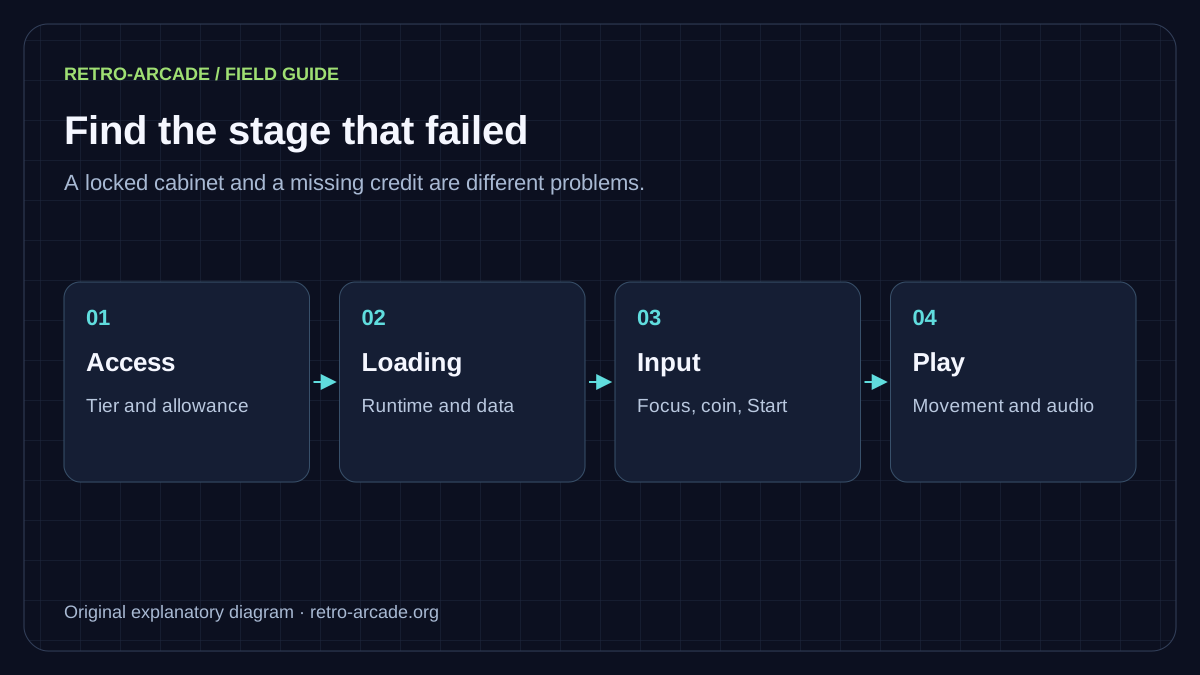
Read the access label on the cabinet page. Visitor games can be accessed without signing in, Member games need a free account, and Supporter games need an eligible paid pass or membership. Visitor and Member play also have daily allowances. The access page gives current terms; an older article naming a game is not an access guarantee.
A message about an allowance or account is different from a failed download. Follow the page’s stated access route rather than changing browsers to get around it. If a cabinet is explicitly marked unavailable, report that cabinet rather than repeatedly trying its player.
When the cabinet has loaded but does not start
- Click or tap inside the player to give it focus.
- Read any warning or information screen. Some cores need its acknowledgement before reaching the cabinet.
- Use the game page’s coin control. The usual keyboard mapping here is V.
- Use its one-player start control, usually Enter. On touch, use COIN and then START.
- If those keys were rebound, check Control Settings instead of assuming the defaults still apply.
Coin and Start are different inputs in a coin-operated machine. Pressing Start repeatedly without a credit can leave a perfectly working attract sequence on screen. Watching that sequence first also helps distinguish a responsive emulator from a loading failure.
Match the next step to the symptom
| What you see | What to try |
|---|---|
| An access or allowance message | Check the account tier and current allowance shown by the site. |
| An unfinished loading screen | Allow the transfer to finish, then retry once. Note the last message shown. |
| Demo play but no response | Focus the player, add a credit, and check the mapped Start input. |
| Picture with no sound | Interact with the player and inspect tab mute, game volume, device output, and Bluetooth routing. |
| Only one action is missing | Inspect that action’s mapping and test it without holding other keys. |
Browser audio rules can require interaction before sound begins. See MDN’s autoplay documentation. Avoid treating silence alone as evidence that a ROM or sound pack is missing.
Keep a failed run useful
Before clearing site data, remember that doing so may remove local settings or saves. Before closing a session, note the exact error and game page address. Change one thing at a time and say which change affected the result. If another cabinet works under the same conditions, include that comparison.
A good report is short: game URL; device and browser version; last successful stage; exact message; and steps that reproduce it. Do not send passwords, payment details, or game archives. Use Contact, or check Player Help for focus and control questions.
What players are saying…
No comments have cleared the cabinet yet. Be the first player to join in.
Leave your comment
Sign in with a confirmed player account to join the conversation.
Sign in to comment